How to cut a video into multiple clips on iPhone
Trimming in the Photos app keeps one piece of a video. To get several clips out of one recording — every scene, every swing, every good take — you would trim, save and start over for each one.
Cut in Split Video Into Parts works like scissors on a timeline: scroll to a moment, tap, and the video splits right there. Delete the pieces you don't want — every piece you keep is saved as its own video.
What Cut does
Scissors on a timeline, right on your iPhone.
| Where the cut goes | Exactly at the playhead — pinch the timeline to zoom in for precise cuts |
|---|---|
| Pieces you don't want | Select one and tap Delete — it isn't exported |
| Mistakes | Undo and Redo any step |
| Every clip | A video of its own in Photos, in the original resolution and frame rate |
| Needs | iPhone or iPad with iOS 18 or later, Mac with macOS 15 or later |
On iOS 16 and 17 there is no Cut button — split with Duration, Parts or Add split instead.
Split Video Into Parts, Photos or iMovie?
Photos keeps one piece per trim, and iMovie splits on a timeline but exports one movie. Cut splits on a timeline and saves every piece as its own video.
| Split Video Into Parts | Photos app | iMovie | |
|---|---|---|---|
| Several clips from one video | Yes — tap Cut at every cut point | One per trim: trim, Save Video as New Clip, repeat | Split on the timeline, but you export one movie |
| Each clip as its own video | Yes, all in one export | Yes, one at a time | Only with a separate project per clip |
| Removing unwanted pieces | Select and Delete | Trim them away, one clip at a time | Delete on the timeline — the rest becomes one movie |
| Quality | Original resolution and frame rate | Original quality | Re-encoded on export |
| Price | Free for short videos, long videos with Pro | Free, built in | Free |
| Best for | Many clips from one recording | One quick clip | Editing one movie |
Photos and iMovie as of iOS 27, October 2026.
How to cut a video into clips step by step
Open the video
In Split Video Into Parts (free on the App Store), tap Library or Files and pick your video.
Tap Cut
The timeline opens with the frames of your video. Scroll it to move the playhead, pinch to zoom in.
Cut at every point
Stop where a clip should end and tap Cut; repeat for every clip. Select a piece you don't need and tap Delete.
Export
Tap Back, then Export and Save to library — every clip appears in Photos as its own video.
Why cut on a timeline
You see where you cut
The frames show every scene, swing and pause, so each cut lands on the right moment — no timecodes to type.
Keep only what you need
Delete the pauses, misses and boring bits. Only the clips you keep are exported.
Change your mind
Undo and Redo any cut, or drag the edges of a clip to fine-tune it — they snap to the neighboring cuts and the playhead.
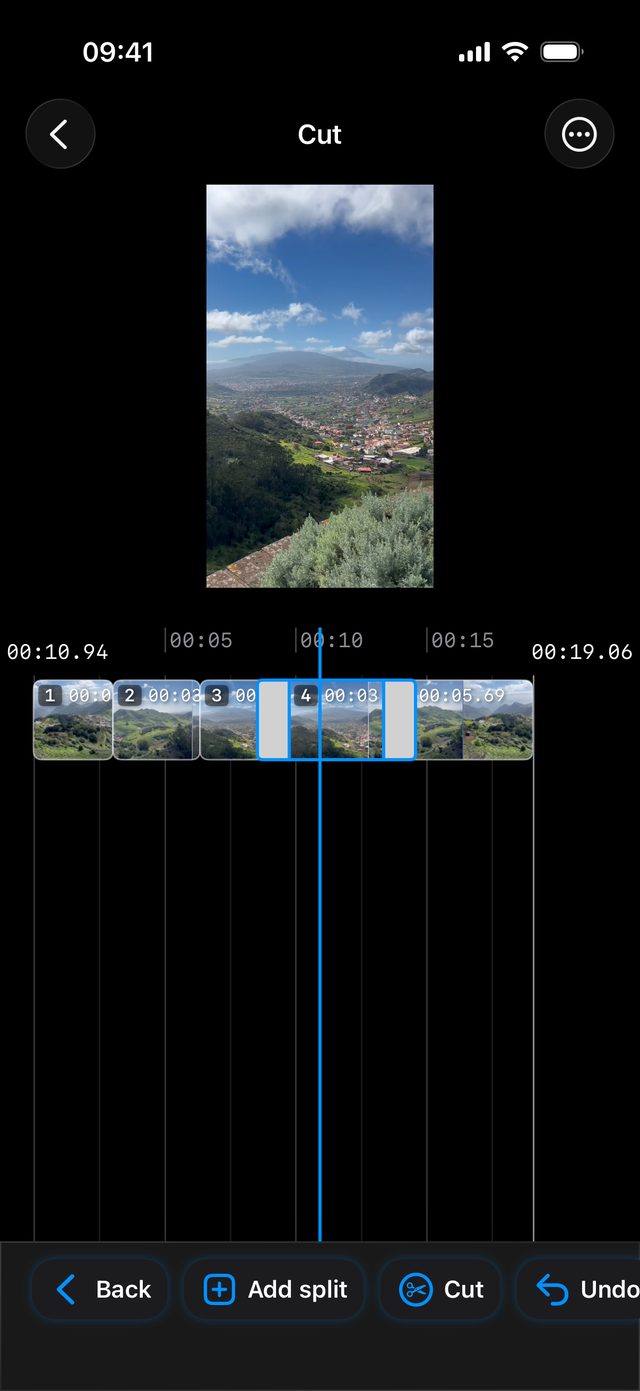
Scroll, stop, tap the scissors — and every piece you keep is saved as its own video.
Frequently asked
How do I cut a video into multiple clips on iPhone?
Open it in Split Video Into Parts, tap Cut, then tap Cut again wherever a clip should end. Tap Back and Export — every clip is saved to Photos as its own video.
Can I cut out the middle of a video?
You can cut it away: tap Cut where the unwanted part starts and where it ends, select it and tap Delete. The parts before and after it are saved as two separate videos — the app doesn't join them back into one.
Which devices have Cut?
iPhone and iPad with iOS 18 or iPadOS 18 or later, and Macs with Apple Silicon on macOS 15 or later. On iOS 16 and 17 the app still splits by time, by number of parts and with your own timecodes.
Can I place a cut on the exact frame?
Yes. Pinch the timeline to zoom in — the playhead shows the time to a hundredth of a second. Prefer typing an exact timecode? Use Add split instead.
Is Cut free?
Yes, Cut is part of the free app. Short videos export for free; long videos need Pro.
Will the clips lose quality?
No. Every clip keeps the original resolution and frame rate, up to 4K. Turn on HDR Video (Pro) to keep iPhone HDR.
More ways to split
Start splitting videos in seconds.
Free download. No account required. Works offline.
Download on theApp Store