How to split a video on iPhone
The built-in Photos app can trim a video and save the trimmed part as a new clip — but it can't cut one video into several parts in one go. You'd repeat the trim for every part, setting each cut by eye.
Split Video Into Parts does it on the phone itself, four ways: by time interval, by number of parts, manually with frame-exact timecodes, or with scissors on a timeline. Here is how each works and when to use it.
Four ways to split, compared
Pick the method that matches your task.
| By time interval | Set 30s, 60s, 90s — the app cuts the whole video automatically. Best for Stories, Status, Shorts. |
|---|---|
| By number of parts | Type 2, 5 or 50 — get segments of identical length. Best for halves, thirds, series. |
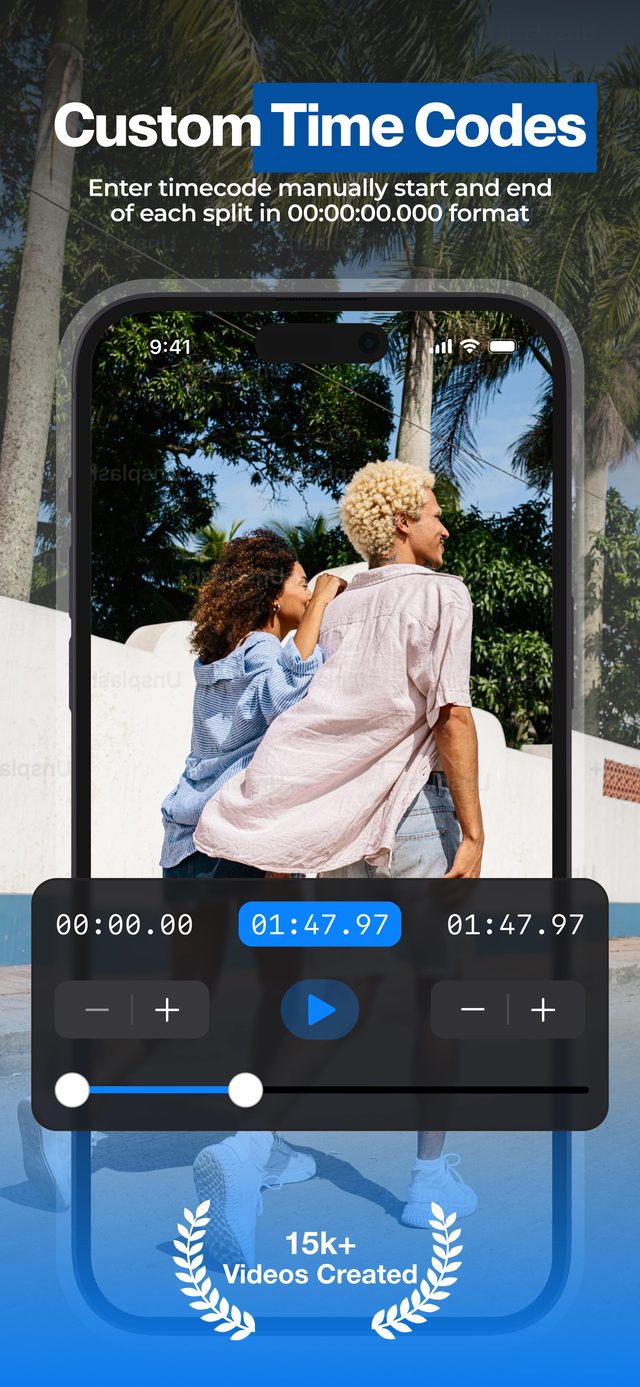
| Manual with timecodes | Drag a slider or type 00:00:00.000. Best for highlights and precise cuts. |
| On the timeline with Cut | Scroll the frames and tap the scissors wherever a part should end; delete what you don't need. Best for cutting by eye, scene by scene or rep by rep. iOS 18+. |
| Where it runs | iPhone & iPad (iOS 16+), Mac (Apple Silicon), Apple Vision Pro |
All four methods keep the original resolution and frame rate. Turn on HDR Video (Pro) to keep iPhone HDR.
Split Video Into Parts, Photos or iMovie?
For one quick cut the Photos app is enough. For several parts, an app built for splitting is much faster.
| Split Video Into Parts | Photos app | iMovie | |
|---|---|---|---|
| Several parts in one go | Yes — by time, by number, by timecodes or on a timeline | No — trim and save one part at a time | No — split on the timeline, then one project per part |
| Exact cut points | Timecodes to a hundredth of a second, or the playhead on a zoomable timeline | By eye, with the trim handles | By eye, with the playhead |
| Each part as its own video | Yes, saved to Photos | Yes, with Save Video as New Clip | Only by exporting a project per part |
| Quality | Original resolution and frame rate | Original quality | Re-encoded on export |
| Price | Free for short videos, long videos with Pro | Free, built in | Free |
| Best for | Many parts, platform limits, long videos | One quick cut | Editing a movie, not splitting |
Photos and iMovie checked on iOS 27 in October 2026.
How to split a video on iPhone step by step
Get the app
Download Split Video Into Parts free from the App Store — no account needed.
Pick your video
Import from your library or Files. Any orientation, up to 4K.
Choose a split method
Time interval for platform limits, number of parts for equal segments, timecodes for precise highlights, or Cut to split by eye on the timeline.
Export
All parts save to Photos in original quality, numbered and ready to share.
Why not the Photos app or iMovie?
Photos trims one part at a time
Trim, save as a new clip, repeat — fine for one cut, slow for ten, and every cut point is set by eye.
iMovie is a movie editor
You can split clips on its timeline, but each piece needs its own project to become a separate video. Cut in this app works on a timeline too — and every piece is saved as its own video.
This is one tap per job
Type an interval or a number and the app does every cut at once — that is the entire workflow.
Everything happens on the phone: no uploads, no waiting on a server queue, and a 7-hour recording is still fair game.
Frequently asked
Can the iPhone Photos app split a video into parts?
Not in one go. Photos can only trim a video, but after trimming you can choose Save Video as New Clip — repeat that for every part. For exact or many parts, a splitter app is faster.
How do I split a video in half on iPhone?
Open the app, choose split by number of parts, and enter 2. You get two halves of identical duration, cut at the exact midpoint.
Can I split a video on a timeline, like in iMovie?
Yes, with Cut (iOS 18 or later): scroll the timeline to a moment and tap the scissors to split the video there, repeat for every cut, then Export. Unlike iMovie, every piece is saved as its own video — no project per part. More in our guide to cutting a video into clips.
Is it free?
Yes, to download and to split short videos. Long videos, HDR export, muting and your own watermark come with Pro, a weekly, monthly or yearly subscription.
Will splitting reduce quality?
No. Parts keep the original resolution and frame rate, up to 4K. With HDR Video (Pro) on, iPhone HDR stays HDR and the video is copied without re-encoding.
Does it work on iPad and Mac?
Yes. The same app runs on iPad (iPadOS 16+), Apple Silicon Macs (macOS 13+) and Apple Vision Pro. Cutting on the timeline needs iPadOS 18 or macOS 15.
Is splitting a video the same as a split-screen video?
No. Splitting cuts one video into several shorter videos. A split-screen video shows two or more videos side by side in one frame — for that, use our other app, Video Grid Collage: how to make a split screen video on iPhone.
More ways to split
Start splitting videos in seconds.
Free download. No account required. Works offline.
Download on theApp Store