Split training footage into per-rep clips
Leave the camera rolling at the driving range, the court or the squat rack and you come home with one giant file — where the eight seconds you actually need are buried in forty minutes of walking around.
Split Video Into Parts cuts a session into individual clips — one per swing, serve or set — so you can compare attempts side by side, track form over weeks, or send a single rep to your coach.
What athletes cut sessions into
Common patterns from real users.
| Golf | One clip per swing at the range |
|---|---|
| Tennis & baseball | Per serve, per at-bat |
| Lifting | Per set, for form checks |
| Team film | Per possession or play for breakdown |
Fixed-interval drills split well by time; irregular sessions are fastest with Cut on the timeline.
How to split a practice session
Record the whole session
Prop up the phone, hit record once, and forget about it. One long file is fine.
Cut per rep
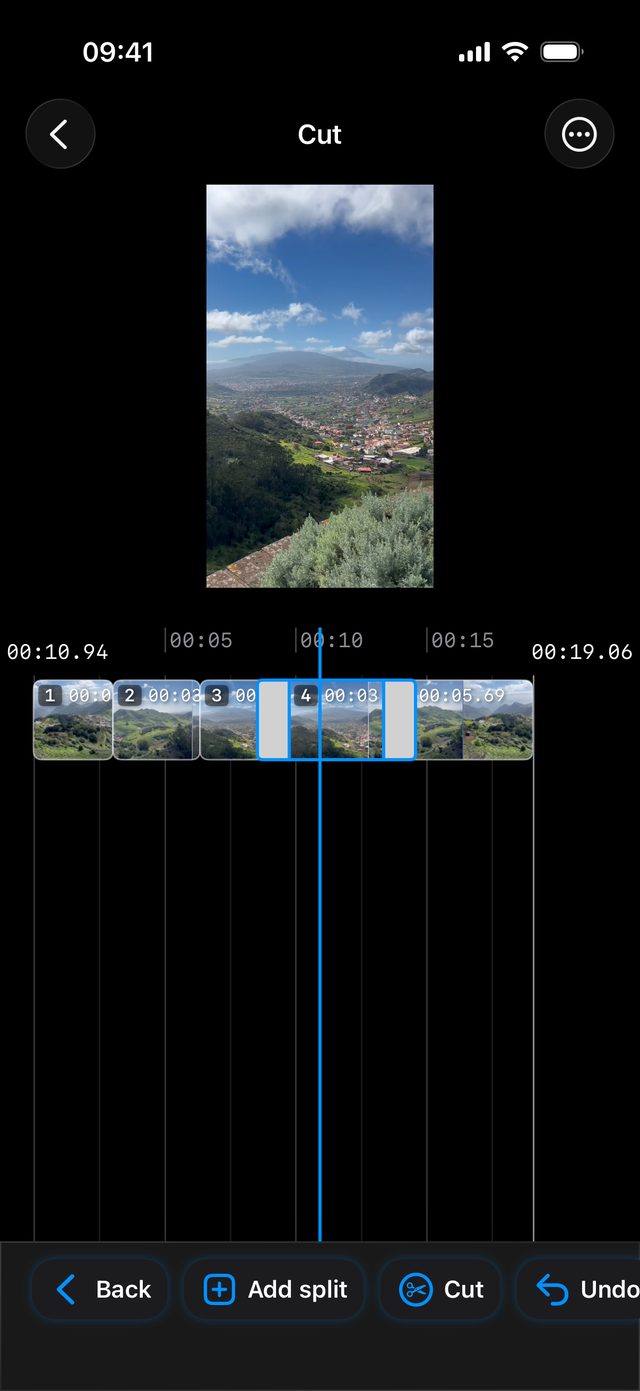
Tap Cut, scroll to each swing or set and tap Cut before and after it, then delete the pauses. Drills on fixed intervals? Tap Duration instead.
Mute the noise
Switch on Mute Audio (Pro) when range chatter or gym music adds nothing.
Save & compare
Export clips to Photos, build an album per session, and send individual reps to your coach.
Why athletes use it
Manual cuts for irregular action
Reps do not happen on a schedule. On the timeline you see each attempt in the frames and cut right around it.
Silent clips on demand
Mute Audio (Pro) exports the clips without driving-range noise or gym playlists.
Sessions autosave
Split half the session today, come back after practice tomorrow — your cut points are still there.
“Super convenient for cutting up each shot from videos I recorded at the driving range.”
Frequently asked
Can it handle an hours-long recording?
Yes, with Pro. Reviewers have split multi-hour files on-device — a 7-hour video took about 10–15 minutes to process.
Does it keep the original frame rate?
Yes. Clips keep the frame rate you recorded, so 60 fps and slo-mo footage stays smooth for form analysis.
What is the fastest way to cut per rep?
Cut on the timeline. Scroll to each attempt, tap the scissors before and after it and delete the pauses — then export every rep at once. Cut needs iOS 18; on older versions, tap Add split for each rep and drag its range.
Can I share a single rep with my coach?
Yes. Each clip exports as its own file to Photos, ready to drop into Messages, WhatsApp or email.
Is my footage uploaded anywhere?
No. Everything processes on your device — team film and junior athletes' footage never leaves your phone.
Can I put two attempts side by side to compare them?
Yes — export the clips, then put them side by side in our other app, Video Grid Collage. Here's how to make a comparison video on iPhone.
More ways to split
Start splitting videos in seconds.
Free download. No account required. Works offline.
Download on theApp Store